Welcome to Your QR Code Resource Hub
QR codes are a modern, convenient way to share important details with your guests while keeping your wedding stationery sleek and clutter-free. Whether you’re linking to your RSVP page, a wedding website, venue directions, or even a gift registry, QR codes make it easy for your guests to stay connected.
This guide will walk you through how to customize and use QR codes in your wedding templates, address what happens if the placeholder code isn’t replaced, and provide tips for seamless printing and usage. If you’re here because you scanned a placeholder QR code, we’ll guide you on what to do next!
What Are QR Codes and Why Use Them?
A QR code (short for “Quick Response” code) is a scannable image that directs users to a specific link or digital content. In the world of weddings, QR codes can:
- Simplify the RSVP process by linking directly to an RSVP form.
- Provide easy access to venue directions or maps.
- Share your wedding website or gift registry details.
- Go paperless for eco-friendly options like digital invitations or programs.
- Link to photo galleries, playlists, or even a live stream for guests who can’t attend in person.
QR codes are versatile and easy to use, making them a popular addition to wedding stationery.
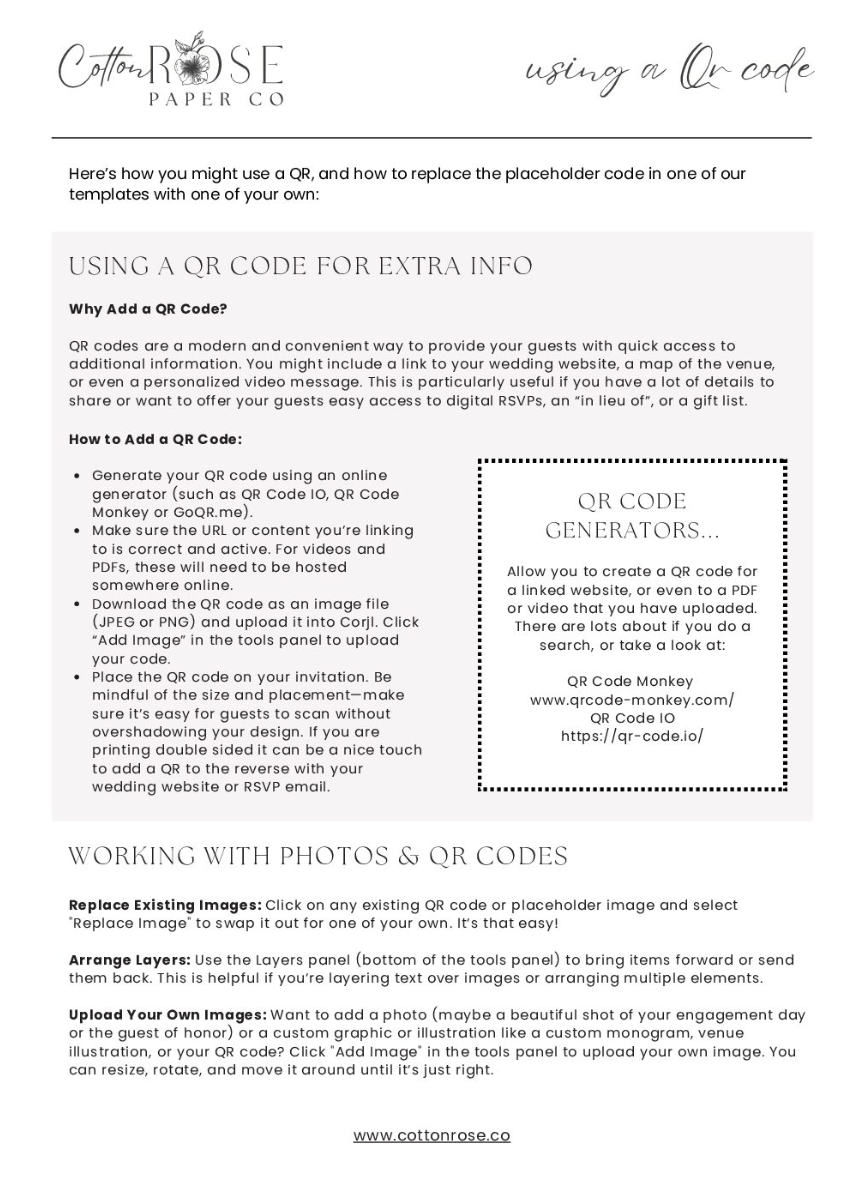
How to Replace the Placeholder QR Code in Your Template
If your wedding stationery template includes a placeholder QR code, it’s important to replace it with one that links to your personalized information. Here’s how to do it:
1. Generate Your QR Code:
• Visit a free QR code generator, such as QRCode Monkey.
• Enter the URL or information you want to link to (e.g., RSVP page, wedding website, venue directions).
• Customize the QR code (color, style) to match your wedding stationery if desired.
• Download the QR code as a high-resolution PNG or JPG file.
2. Upload Your QR Code to the Template:
• Open your template in the Corjl editor.
• Select the placeholder QR code and click the ‘Replace Image’ option in the tools panel to the right. If you are adding a QR code to a design without a placeholder, you can click the ‘Upload Image’ option to add it to the template.
• Upload your new QR code file, adjust the size, and position it in the design.
3. Test Your QR Code:
• Before finalizing your design, use your smartphone or QR code reader to test the code and ensure it links to the correct page.
What Happens if the Placeholder QR Code Isn’t Replaced?
If you don’t replace the placeholder QR code in your design, it will direct guests to this page.
Message for Guests Who Scanned the Placeholder Code
Hello! If you’ve scanned this QR code, it means the couple’s personalized code wasn’t added to the design. Please contact the Bride, Groom or Event Organiser directly for the correct link or information.
Thank you for understanding!
We encourage you to update the QR code in your template to avoid confusion for your guests. Don’t worry—updating the code is quick and easy, and we’re here to help if you need guidance!
Creative Ways to Use QR Codes in Wedding Stationery:
QR codes are more than just functional—they can enhance the experience for your guests! Here are some ideas:
Save the Dates: Link to your wedding website or an online countdown timer.
Invitations: Provide RSVP access, maps, or hotel accommodation details.
Ceremony Programs: Share a live stream or digital (PDF file) program.
Menus and Place Cards: Show dietary information, a video of the chefs preparing the menu, or offer cocktail pairings.
Thank You Cards: Direct guests to wedding photo galleries or highlight videos.
Troubleshooting Common QR Card Issues:
QR codes not working? Here are some quick fixes:
Code won’t scan:
- Ensure the code is high resolution and not too small.
- Check for good contrast between the code and the background.
Incorrect link:
- Double-check the URL when generating the QR code.
Not aligned when printing:
- Adjust the placement and size in your template to ensure it fits correctly.
Eco-Friendly Tips for Using QR Codes:
Want to make your wedding more sustainable? QR codes are a great way to go green:
- Use them to reduce the number of printed inserts, such as RSVP cards or programs.
- Encourage guests to scan codes digitally instead of printing additional materials.
- Opt for a minimalist design with fewer physical items.
Free Support for QR Code Questions:
We’re here to make your experience with our templates smooth and enjoyable! If you have any questions about replacing or using QR codes in your designs, feel free to reach out. We offer complimentary 10-minute email support with purchases to help with any quick fixes or guidance you may need.
QR Code Best Practices:
• Test your QR codes before printing to ensure they work as intended.
• Keep codes subtle and unobtrusive while maintaining functionality.
• Place them in areas that are easy for guests to locate and scan.
Ready to personalise your QR code design?
Or visit the Cotton Rose User Guide for step-by-step instructions, hints, and tips for your wedding templates.
Need inspiration? Check out our blog for creative ideas to elevate your wedding stationery!