

Getting Started: Downloading Your Template Files
Before uploading your Cotton Rose designs to VistaPrint, you’ll need to download your templates from Corjl. Follow these simple steps:

1. Complete Your Design in Corjl
Use the Corjl online editor to customize your template (make sure you are using the VistaPrint compatible size in your bundle).
Once you are finished, check to ensure all your details are correct, including spelling, and that your design is ready for printing.
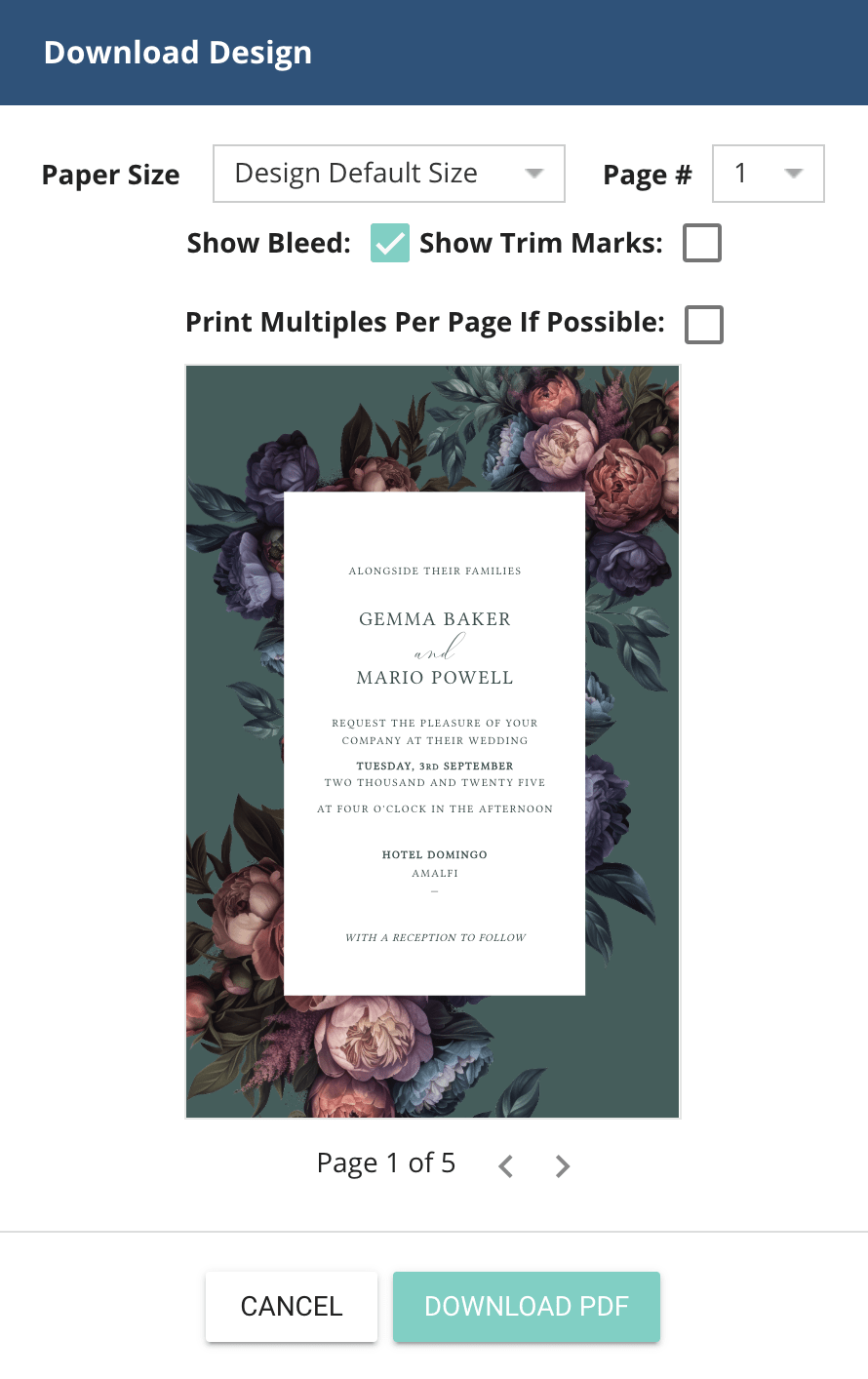
2. Download Your Design
- Select PDF as your file type.
- Choose Design Default Size to match the size of the card you’re printing.
- Check the Add Bleed option to ensure your design prints to the edge without white borders, and make sure everything else is unchecked.
- If your design is double-sided, download the front and back as separate files.
Which of Our Template Sizes Match up With VistaPrint
VistaPrint uses its own unique card and invitation sizes, which may differ from standard dimensions.
To ensure your design prints perfectly, be sure to select the VistaPrint-specific size from your template set before work on it.
Below, you’ll find a list of Cotton Rose VistaPrint compatible template sizes for easy reference.
…..
Large Invitation or Card:
Half-Letter
6 x 9″ / 13.9 x 21.6 cm
Standard Invitation or Card:
VistaPrint Specific ‘Medium’
4.6 x 7.2″ / 11.7 x 18.2 cm
Small Invitation or Card:
VistaPrint Specific ‘Small’
4 x 5.5″ / 10.7 x 13.9 cm
Slim Card (e.g. program):
VistaPrint Specific ‘Slim’
4 x 8″ / 9.5 x 21 cm
Printing Cotton Rose Invitations with VistaPrint
Our invitation and card templates work seamlessly with VistaPrint’s card sizes, specifically:
- Half-Letter Templates match VistaPrint’s 6 x 9 inch (13.9 x 21.6 cm) cards.
- Vista-Specific ‘Medium’ Templates are designed for their 4.6 x 7.2 inch (11.7 x 18.2 cm) cards.
- Vista-Specific ‘Small’ Templates are designed for their 4 x 5.5 inch (10.7 x 13.9 cm) cards, like Save the Dates and enclosures.
- Vista-Specific ‘Slim’ Templates are designed for their 4 x 8 inch (9.5 x 21 cm) cards.
Here’s how to upload and print your invitations and wedding cards:
Step-by-Step Instructions for Uploading Invitations
1. Visit the VistaPrint Website
- Navigate to the VistaPrint website for your country (e.g., www.vistaprint.com).
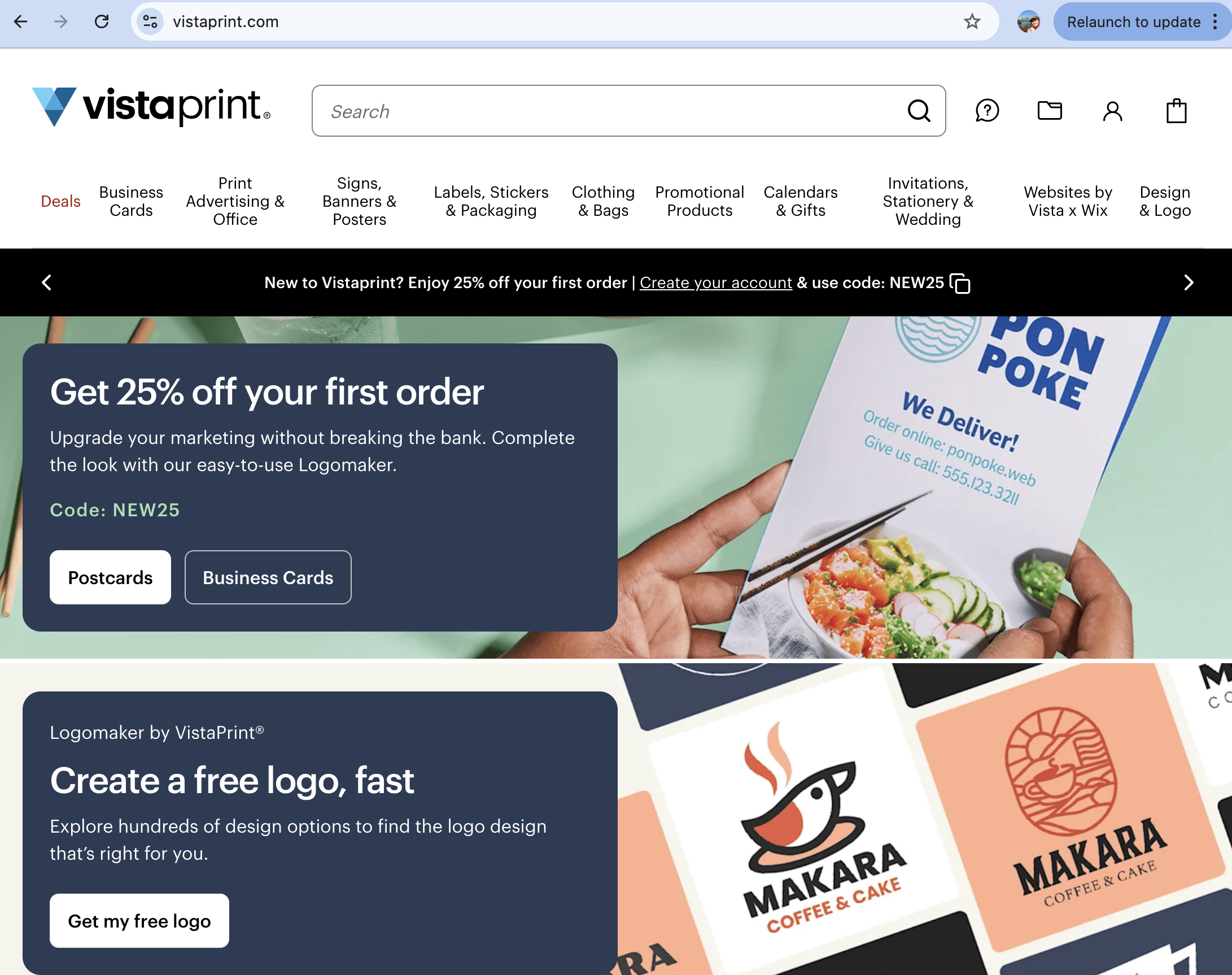

2. Navigate to the Wedding Invitations Category
- Use the dropdown menu to locate the Wedding Invitations category.
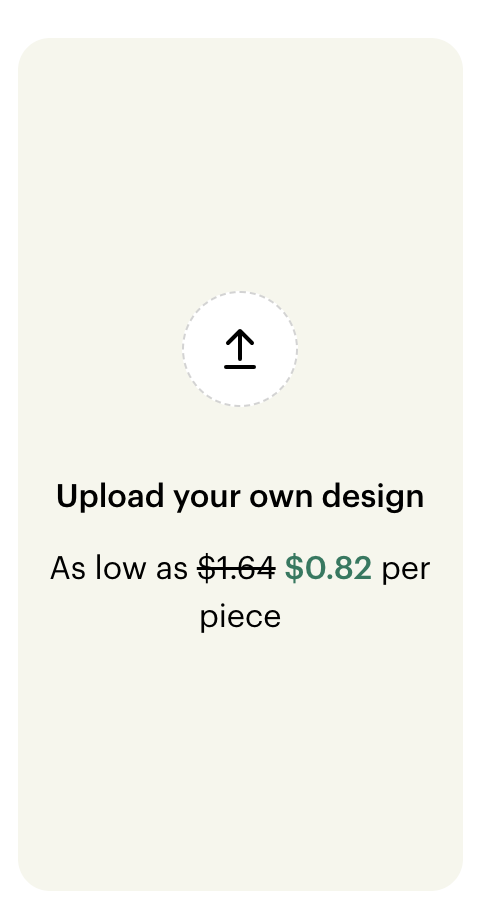
3. Click "Upload Your Own Design"
- Click on the “Upload Your Own Design” graphic to upload your templates to the system.

4. Select Your Options
- Select the 6 x 9 inch/ 21.6 x 13.9 cm size for ‘large’ invitation Half-Letter templates, or the 4.6 x 7.2 inch/ 18.2 x 11.7 cm size for ‘standard’ (5×7 inch equivalent) Vista-specific invitation templates.
- Set the orientation (horizontal or vertical) to match your design.
- Choose your desired quantity and click Next.
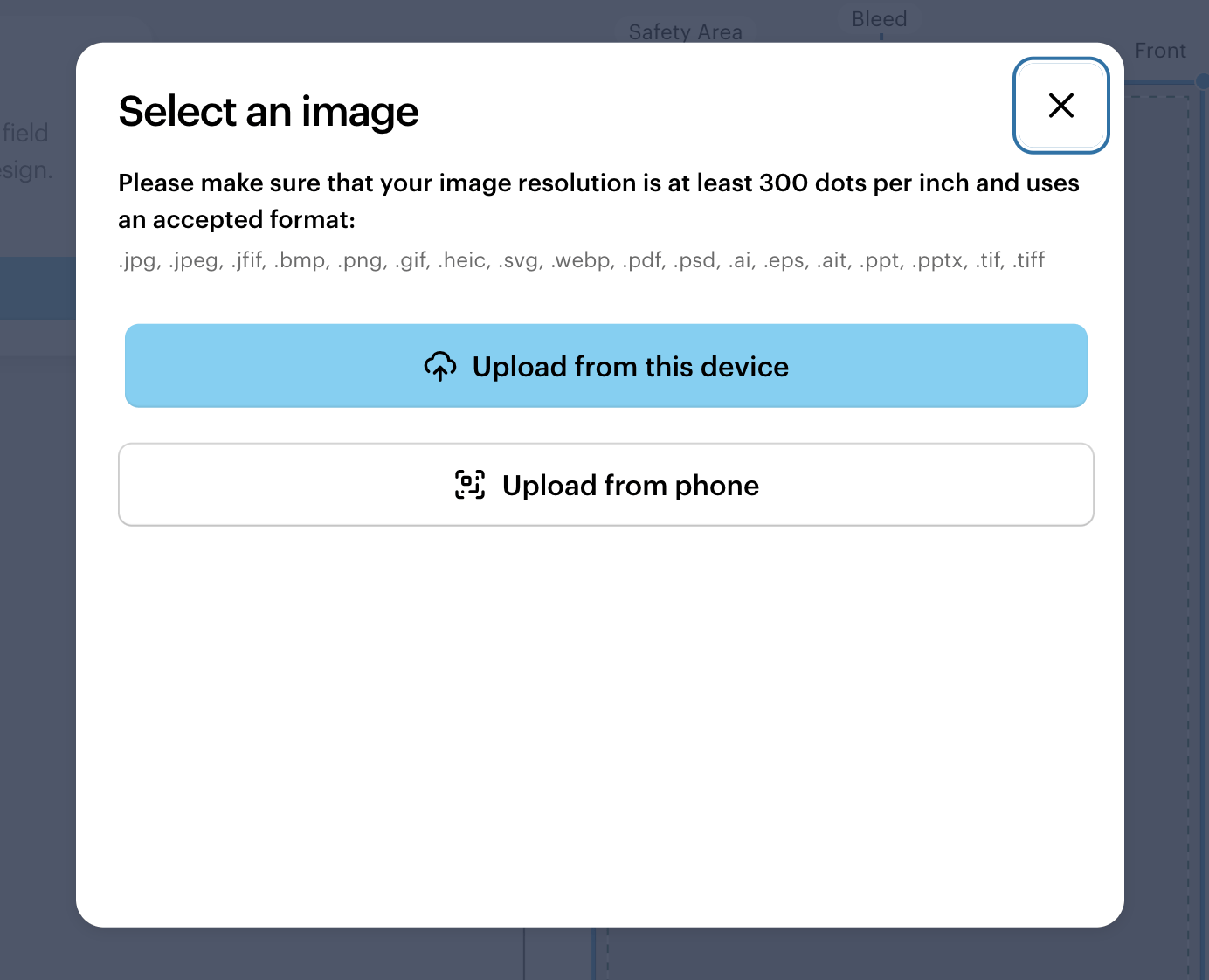
5. Upload Your Template File
- Upload the front design for your invitation.
- Check that the design fills the canvas and extends to the bleed edges.
- If you are using a template from another designer who doesn’t offer VistaPrint specific sizing, you might need to use the handles at the corner of your design to resize it so that it fits to the edges of the bleed area. This will ensure you don’t have any white lines at the edges after trimming!


6. Add a Reverse Design (if Applicable)
- For double-sided designs, click Back and upload the reverse side, checking that it fills to the edges of the bleed area again, and resizing if necessary by dragging the handles.
7. Preview and Approve
- Use the preview tool (the button is at the top of the interface) to check your design. Download the PDF Proof to confirm details like spelling and layout.
- If everything looks good, click the Next button. Take one last time to check everything looks correct, then confirm and Continue.

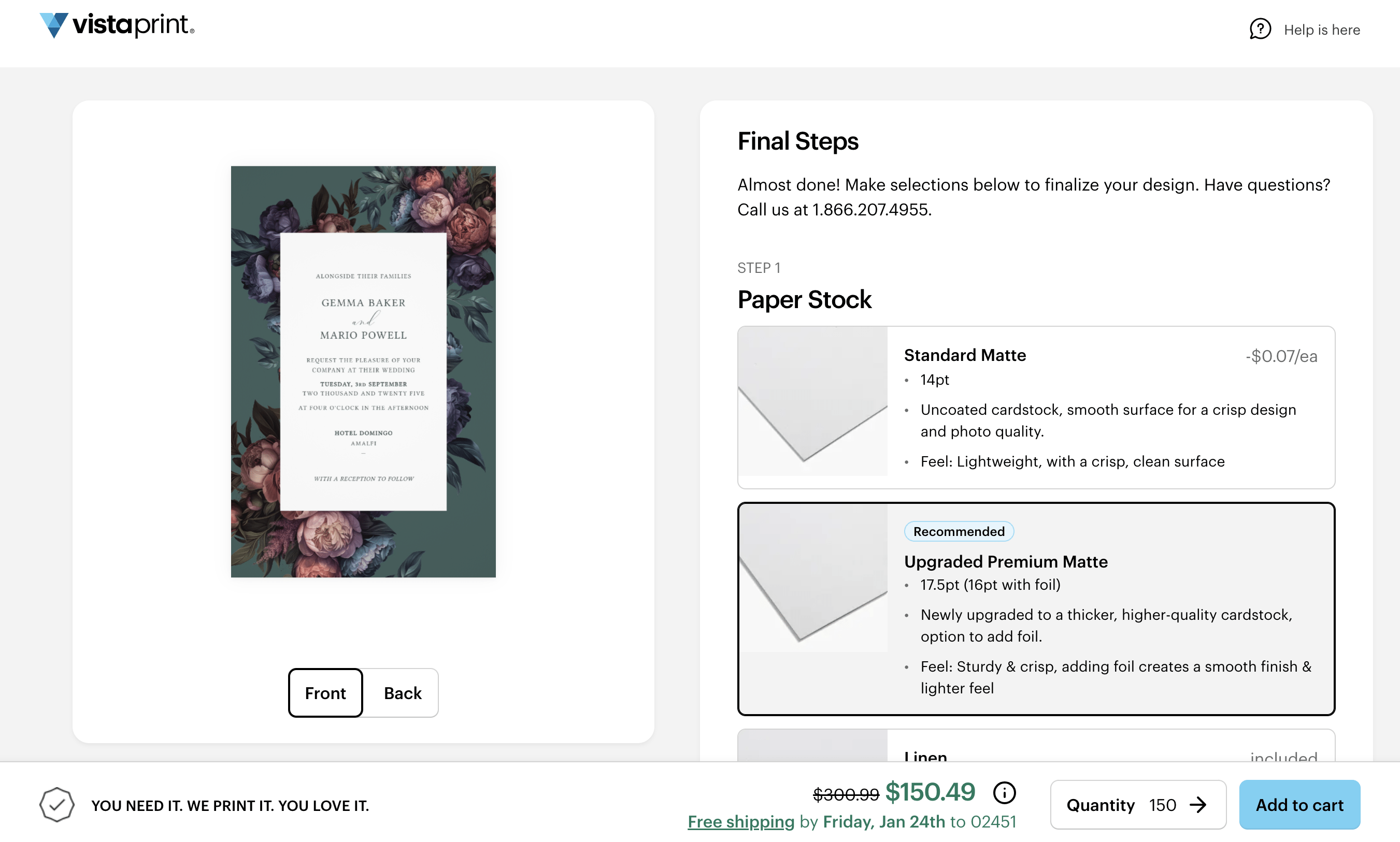
8. Finalize Your Order
- Choose your preferred paper type and add your invitations to the cart.
Printing Save the Date, RSVP and Enclosure Cards with VistaPrint
If you’re printing a small invitation or Save the Date, or a full suite including RSVP or enclosure cards, VistaPrint’s 5.47 x 4.2 inch (13.9 x 10.7 cm) card size is the perfect match for our smaller ‘VistaPrint-specific’ templates.
How to Upload Smaller Cards
1. Navigate to the Save the Date, RSVP Cards or Enclosures Section
- In the Wedding Invitations category, select RSVP Cards or Enclosures.
2. Choose the Correct Size
- The 5.47 x 4.2 inch/ 13.9 x 10.7 cm size is the only option available for these cards.
3. Upload Your Front Design
- Upload your Save the Date, enclosure or RSVP card design and check the layout in the editor.
4. Upload the Reverse Design (if Needed)
- For double-sided designs, upload the reverse file for the back of the card.
5. Preview and Approve
- Preview your design and download the PDF Proof for a final check.
6. Complete Your Order
- Confirm your design, select paper options, and add the cards to your cart.
Why Choose VistaPrint for Your Wedding Stationery?
VistaPrint’s flexibility, quality paper options, and compatibility with our templates (we always try to include a VistaPrint size if it is not a variable print item) make it an excellent choice for your wedding stationery. Whether you’re printing invitations, RSVP cards, or enclosure cards, you’ll get professional results with minimal effort. They tend to be great value too, and are available in many locations across the world.
Pro-Tips For Perfect Printing
- When Downloading: Always download your design at Design Default Size and make sure Bleed is selected. Download your preferred front (and reverse, if applicable) as separate files by selecting the correct page number from your template layout. Selecting PDF file type is the preferred option.
- Avoid Variable Data or Guest Personalization: VistaPrint does not support guest name personalization for variable data or variation printing. All your printed cards will need to be the same for all guests.
- Understanding VistaPrint Sizes: VistaPrint’s size names don’t always match the exact dimensions. For example, Half-Letter templates fit perfectly with their 6 x 9 inch size, even though the names differ.
Ready to Create Your Stationery?
Ready to create your dream wedding suite? Browse our editable templates on Etsy and start customizing your design today. With templates tailored to VistaPrint sizes, your wedding stationery will be stunning, cohesive, and hassle-free to print!